

In 2026 kiezen steeds meer kijkers ervoor om af te zien van logge satellietontvangers en tv’s met een gesloten platform, ten gunste van slimmere, flexibelere kijkmogelijkheden. IPTV op een Firestick met IPTV biedt je de vrijheid om precies te kiezen wat je wilt, wanneer je maar wilt, en eigenaren van een Sky Glass kunnen zelfs meer inhoud door Sky Glass te koppelen aan een Firestick. In deze “insider”-gids leer je hoe je van een gewone Firestick een krachtige IPTV Firestick doos en hoe je er een Firestick met IPTV op een vergrendelde Sky Glass-tv om te genieten van moderne live-tv zonder dure contracten.
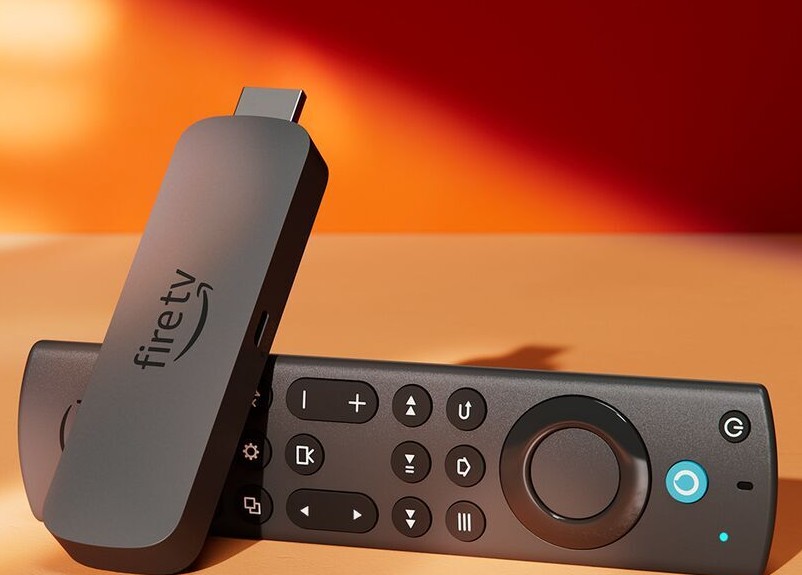
Deel 1: Hoe gebruik je een Firestick met IPTV (stap voor stap)
Aan de slag IPTV Firestick Het opzetten en in gebruik nemen is verrassend eenvoudig als je eenmaal de juiste stappen kent. Volg deze duidelijke, jargonvrije methode en je kunt binnen 15 minuten live tv streamen.
1. Zet je Firestick klaar
- Sluit je Amazon Fire TV Stick in een HDMI-aansluiting op je tv en sluit het apparaat aan op het stroomnet met behulp van de meegeleverde adapter.
- Zet de tv aan en kies de juiste HDMI-ingang.
- Volg de installatie-instructies op het scherm: meld je aan met je Amazon-account, maak verbinding met wifi en installeer de nieuwste Fire OS-update.
Op dit moment beschik je al over een krachtig Android-apparaat waarop elke IPTV-app kan draaien.
2. Apps van onbekende bronnen toestaan
Standaard staat de Firestick alleen apps uit de Amazon Appstore toe. Om IPTV-spelers via sideloading te installeren, moet je een uitzondering inschakelen:
- Ga naar Instellingen → Mijn Fire TV → Opties voor ontwikkelaars.
- Draai “Apps uit onbekende bronnen” naar AAN.
Dit is de ontgrendelingsschakelaar waarmee je gebruik kunt maken van IPTV Firestick volledig, zonder jailbreak of root-toegang.
3. Downloader installeren
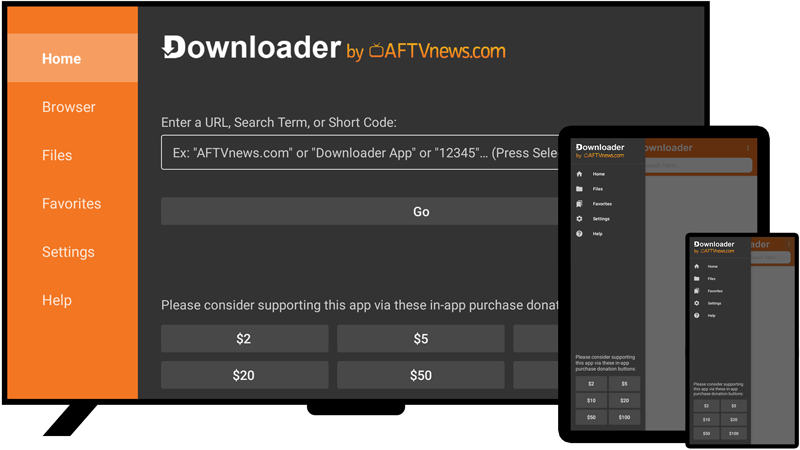
Downloader is de “toegangspoort”-app die wordt gebruikt om IPTV-spelers via sideloading te installeren. De app is verkrijgbaar in de officiële Amazon Store, dus je kunt hem eenvoudig en veilig toevoegen:
- Terug naar het startscherm van de Firestick.
- Openen Zoeken en typ “Downloader”.
- Installeer de Downloadprogramma app van AFTVnews.
Open na de installatie Downloader, zodat je klaar bent om de door jou gekozen IPTV-speler te downloaden.
4. Download en installeer een IPTV-app
De meeste hoogwaardige IPTV-diensten, waaronder betrouwbare aanbieders zoals IGIPTV, raden het volgende aan: TiviMate of Smarters voor optimale prestaties. Hier volgt een korte werkwijze:
- Openen Downloadprogramma.
- Voer de URL voor het downloaden van de APK (verstrekt door je provider) in het URL-veld en tik op Ga.
- Wacht tot de APK is gedownload en klik vervolgens op Installeren.
- Zodra de installatie is voltooid, ga je terug naar Je apps en kanalen en open de nieuwe IPTV-app (TiviMate/Smarters/8K-app).
- Log in via de Xtream Codes API of M3U-URL + wachtwoord die je provider je geeft.
Nu run je in feite een Firestick met IPTV een navigatiesysteem voor live-tv dat zich kan meten met dat van elke betaalde tv-box, met weergave op volledig scherm, op afspeellijsten gebaseerd en met EPG-ondersteuning.
Deel 2: De Sky Glass IPTV-oplossing (het “geheim”)
Sky Glass-tv’s zijn gesloten apparaten met app-beperkingen die het gebruik van via sideloading geïnstalleerde IPTV-apps beperken. Als je zoekt naar “Sky Glass IPTV”, kom je vooral gefrustreerde gebruikers tegen die vragen: “Hoe installeer ik IPTV op de Sky Glass zelf?”, maar er is een elegante oplossing die Sky nooit expliciet onder de aandacht brengt.
De echt manier om een volle maag te krijgen Sky Glass IPTV flexibiliteit bereik je niet door Sky Glass te kraken, maar door een Firestick toevoegen.
Hoe het werkt
- Sky Glass-tv's hebben fysieke HDMI-poorten aan de achterkant (of in de verzonken zijrail).
- Jij Sluit een Firestick rechtstreeks aan op een van deze HDMI-ingangen, gebruik de eigen wifi van de Firestick en laat de apps van Sky met rust.
- Als je Sky+ on-demand wilt gebruiken, maak je gebruik van de ingebouwde interface van Sky Glass.
- Als je IPTV, sportzenders of internationale zenders wilt, hoef je alleen maar de ingang naar de Firestick omschakelen,geen code, geen hack, geen inbreuk op de eigen instellingen van Sky.
In de praktijk verandert dit je Sky Glass in een hybride tv: een interface van het merk Sky in combinatie met je eigen Firestick met IPTV de extra’s die je echt wilt, stil van stroom voorzien. Dat is het echte Sky Glass IPTV “truc” die de meeste mensen over het hoofd zien.
Snelle installatie van Sky Glass + Firestick
- Sluit de Firestick aan op een Sky Glass HDMI-aansluiting (meestal HDMI 1 of 2) en sluit het zoals gewoonlijk aan op het stopcontact.
- Druk op je Sky-afstandsbediening op Home → Ingangen → HDMI en selecteer de poort met de Firestick.
- Voer de standaardinstallatie van de Firestick uit (wifi, account) en volg daarna de IPTV Firestick bovenstaande stappen.
Vanaf nu kun je:
- Bekijk de eigen diensten van Sky Glass wanneer je maar wilt.
- Blader door naar de Firestick met IPTV wanneer je op zoek bent naar een breder internationaal aanbod, sportrechten van topniveau of voordeligere pakketten.
Deel 3: Aanbevolen apps (TiviMate, Smarters, 8K App, IBO Speler & Hete speler)
Voor een soepele IPTV Firestick ervaring: de speler-app die je kiest, is net zo belangrijk als de aanbieder. Zodra je Firestick met IPTV Zodra alles is ingesteld, zijn dit de apps die je dat “professionele” gevoel geven.
- TiviMate
TiviMate is voor veel gevorderde gebruikers de favoriete IPTV-speler. De app biedt een moderne tv-gids, krachtige favorieten, een terugkijkfunctie en, in de premiumversie, functies zoals opnemen en aangepaste zendergroepen. Op een Firestick met IPTV, TiviMate zorgt ervoor dat je afspeellijst aanvoelt als een strakke, officiële kabelinterface in plaats van een eenvoudige app. - IPTV Smarters / Smarters Pro
IPTV Smarters is een flexibele, gebruiksvriendelijke speler waarmee je in één app live-tv, series en films kunt bekijken. Het is vooral geschikt voor beginners, omdat de meeste providers (waaronder IGIPTV) deze speler standaard ondersteunen. Voor veel gebruikers is Smarters de snelste manier om IPTV Firestick werkt met minimale instellingen. - 8K-app (de bijbehorende app van IGIPTV)
Als je IGIPTV gebruikt, dan is de 8K-app is de speciale begeleidende speler die is ontwikkeld om het maximale uit je abonnement te halen. De app is geoptimaliseerd voor Fire OS en biedt je snel zappen, stabiele streams en een eenvoudige aanmelding met je IGIPTV-gegevens. Als je de 8K-app gebruikt op een Firestick met IPTV dat betekent minder compatibiliteitsproblemen en een lay-out die is afgestemd op jouw specifieke dienst in plaats van op een standaardafspeellijst. - IBO Player (betaald, premium-uitstraling)
IBO Player is een betaalde, premium IPTV-speler die M3U- en Xtream-codes ondersteunt en bekend staat om zijn overzichtelijke interface en soepele werking. Meestal krijg je een korte gratis proefperiode, waarna je de dienst voor 12 maanden of langer kunt activeren. Voor gebruikers die een “set-and-forget”-oplossing willen” IPTV Firestick Met zijn strakke interface is IBO Player een uitstekende keuze. - Hot Player (betaalde optie)
Hot Player is nog een betaalde IPTV-speler die de nadruk legt op stabiliteit en een snelle, minimalistische interface. Het is ideaal als je de voorkeur geeft aan een eenvoudige EPG in rastervorm en je bereid bent een klein eenmalig bedrag te betalen voor een meer premium uitstraling. Op een Firestick met IPTV, Hot Player kan het perfecte midden zijn tussen “gratis maar beperkt” en “betaald maar veel te ingewikkeld”.”
Welke speler je ook kiest – TiviMate, Smarters, 8K App, IBO Player of Hot Player – het belangrijkste is dat je hem koppelt aan een betrouwbare aanbieder zoals IGIPTV. Die combinatie maakt van een gewone streamingstick een krachtige IPTV Firestick hub.
Deel 4: Veiligheid voorop – Kies een betrouwbare IPTV-aanbieder
Met behulp van een Firestick met IPTV dat wil zeggen: apps via sideloading installeren en abonnementen afsluiten buiten de officiële winkel van Amazon om. Dat brengt risico’s met zich mee als je voor een onbetrouwbare aanbieder kiest.
A beveiligde IPTV-Firestick De configuratie moet het volgende omvatten:
- A een gerenommeerde, stabiele aanbieder (zoals IGIPTV), met een duidelijk privacybeleid, gedocumenteerde uptime en een op het Verenigd Koninkrijk gerichte routering. Vermijd onbekende “levenslange” diensten die stiekem APK’s vol malware kunnen verspreiden.
- Regelmatige app-updates om kwetsbaarheden te verhelpen. Betrouwbare IPTV-spelers zoals TiviMate en Smarters brengen regelmatig beveiligingsupdates uit.
- Kies je APK-bronnen zorgvuldig (alleen via de website van je geverifieerde aanbieder of betrouwbare bronnen). Willekeurige links van downloaders kunnen trackers of spyware bevatten.
Door een goed gekozen IPTV Firestick Als je een speler gebruikt met een betrouwbare backend zoals IGIPTV, behoud je alle vrijheid van moderne IPTV en kun je tegelijkertijd veilig en zonder buffering kijken.
Conclusie: Geniet van volledige tv-vrijheid met Firestick + IGIPTV
Als je tot nu toe vastzat aan Sky of satelliet-tv en graag meer flexibiliteit had gewild, is dit het moment om je daar van te bevrijden. Een Firestick met IPTV geeft je de controle over wat je bekijkt, terwijl je die Firestick aansluit op een Sky Glass Met tv heb je het beste van twee werelden.
De Sky Glass IPTV “Met ”hacken’ wordt niet bedoeld dat je de tv jailbreakt, maar dat je de HDMI-poorten gebruikt om een IPTV Firestick een settopbox die op de achtergrond extra zenders en on-demand-diensten afhandelt, zonder de eigen apps van Sky te beïnvloeden.
Combineer dit alles met een beproefde IPTV-dienst zoals IGIPTV, en je hebt een toekomstbestendige combinatie: je Firestick voor IPTV, je Sky Glass voor het kernaanbod van Sky, en geen langlopende contracten je opsluiten.
Pak een Firestick, loop door de Firestick met IPTV volg de bovenstaande installatiestappen en voer een gratis proefperiode met IGIPTV om te ontdekken hoe makkelijk het is om je kabelabonnement op te zeggen en toch alle wedstrijden, series en documentaires te blijven kijken waar je van houdt.
 English
 Arabic
 Danish
 Dutch
Dutch French
 German
 Greek
Greek Portuguese (Portugal)
 Spanish
 Swedish
 Portuguese (Brazil)